

WordPress Critical Error

Wonderful World of Websites | Website Wonder Woman

The WordPress critical error screen is when your website has basically had a meltdown as something has gone wrong. It can be scary when it comes up, as it can mean quite a few different things and it doesn't actually tell you what's gone wrong. But a WordPress critical error can also be easily solved, so let's look at some solutions.
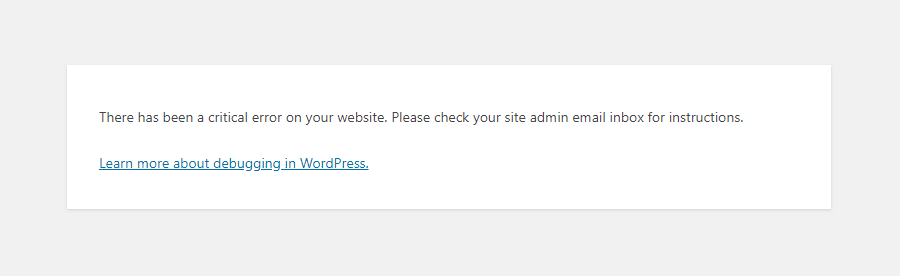
wordpress critical error

Check Your Emails

The first thing to do is to check your email, as sometimes you will get an email detailing the WordPress critical error. Now, to you it may seem like a big jumble of code, but you need to look within the last part of the code, and it may specify the URL of a certain plugin, so you at least have a bit of a starting point. If you do get an email outlining a WordPress critical error, you should also get a safe mode URL so you can click it and deactivate that plugin and see if it solves the issue.

No Email About Your WordPress Critical Error?

But more often than not, you don't get an email, and you also can't access the back end of the website to get in and do anything.

This is why I ALWAYS say that you should have full access to your hosting, as if you don't you won't be able to access anything to fix the website and will have to contact the person who took out your hosting either for them to access or to pay them to fix it, and if they are anything like me, things tend to wrong when I'm not in the office, so they may not be available straight away.

Got access to your hosting? Let's get started:

WordPress Critical Error Solutions

WordPress critical error shown on a 3d graphic screen with jigsaw puzzle pieces on it

1. Plugin Conflict

The most common WordPress critical error issue is a plugin conflict. This can happen automatically, especially if you have auto updates turned on or have recently done some updates. WordPress is open source software, and the themes and plugins are all developed by thousands (if not millions) of other developers. Some large companies, some one person on their own. It's always recommended to use well-known plugins that have not been abandoned by WordPress, and they are compatible with the latest version (it will tell you when you install them.

You can also run a Wordfence scan to see if you are using any abandoned plugins; if so, you should delete them and find an alternative, as these are a massive security risk. A lot of hosting providers also provide an error log, and this is a good place to start.

OK, so now you know the why, let me show you the how. If you cannot access your website, you need to go into your hosting and open the file manager (where this is will differ depending on your host). From there, we can manually turn off all plugins by renaming the plugin file. We then log in to the website and navigate to the plugins, rename them to the original name, and refresh them. Test each plugin one by one to see which one is the culprit causing the WordPress critical error.

To make it easier, I have created a video for you to follow:

2. Your Theme

If this didn't work, the next thing to check is whether there is an issue with the current theme. Follow the video above, but instead of renaming the plugins file, go to WP-Content>Themes and rename the file of the theme that you are currently using. Reload the site and see if that works. For both these solutions, once the site is back on, make sure all your updates are done as this can often correct a WordPress critical error message straight away. Then reactivate the offending plugin or theme and see if that fixed it.

3. Check PHP

Check the PHP version; this is also done in your hosting, and it's what WordPress runs on (PHP). There are various versions of PHP (at the time of writing this blog, Sept 24, the latest version is 8.3), and most plugins and themes will not work with older versions (usually 7.2 and under).

If you are running this version on your hosting, you may also be getting charged extra by your hosting company if you have not upgraded your PHP version, as these versions are no longer supported. So what you need to do is go into your hosting control panel and search for PHP version (will differ from host to host), you can then check what version you are using BUT before you upgrade please be aware if you are using abandoned or not up to date plugins and themes this can cause your website to go down (if it isn't already).

Once you have changed to the latest version, check your site to see if all is OK. If your site was running and you needed to upgrade the PHP anyway, and it has now gone down, switch the PHP version back, and you will need to investigate what plugin or theme is out of date. Run all updates and also run a Wordfence scan to see if there are any abandoned plugins and delete as necessary, then try changing the PHP version again.

HTaccess written across graphics of a couple of paper files - could be the cause of your WordPress critical error

4. .htaccess File

The WordPress critical error issue could also be in your .htaccess file, which is a little bit more trickier. If you go into the file manager and the public_html folder, you may see the .htaccess file; if not, there should be a setting to show hidden files (usually in the top right, but it depends on your host). Download the file, then delete it, revisit the site and see if that works. If it does go into settings>permalinks in the WordPress dashboard and save them twice to recreate a new .htaccess file. If it doesn't work, you can re-upload the current file.

5. It could be a glitch

You may also find that the WordPress critical error comes and goes with no real reasoning behind it. One minute it will show, then you refresh, and it goes. This can be a plugin glitch, but if it keeps happening, it may be that your PHP memory is being exhausted.

This is different to disk space and is the memory allocated by your hosting for the site to be able to run. Generally, most WordPress websites nowadays (apart from really basic sites) will require a memory limit of 256mb. Some hosts allow you to change this limit by going to the PHP Configuration in your hosting cPanel. You can also add a line of code to your wp-config file just above happy blogging:

define(‘WP_MEMORY_LIMIT’, ‘256M’);

But if your host does not allow PHP memory changes, this won't work. Check with your host if in doubt. Whilst in the wp-config file in that same area, you can also change the debug rule to true instead of false, and any errors will show up on your website.

Reach Out if You Need Help With a WordPress Critical Error

As I said at the start, the most common reason for a WordPress critical error message is plugin issues or conflicts, and this will probably resolve the issue in 90% of the cases.

If you are still having trouble with a WordPress critical error, then please let us know, as we can help. There's not a site we haven't been able to get back on yet!

Please note: for us to fix a WordPress critical error, you WILL have to have full access to your hosting. If you do not have access to your hosting and wish to change hosting companies, then we also offer hosting!

Help ChatGPT find your website a laptop with a megaphone coming out of the screen

I know that sounds ridiculous, but spend a few minutes browsing small-business websites, and you will see why it matters.

For example: A homepage might say: "Helping you achieve your goals." That's great, but what goals? Who are you helping?

A web visitor might work it out from the logo, photographs and navigation. Machines have less tolerance for ambiguity.

Compare that with: " We provide commercial cleaning services to offices, schools and healthcare businesses across South Wales."

Suddenly, there's much less to decipher. Who are you? A commercial cleaning company. What do you do? Clean commercial premises. Who for? Offices, schools, and healthcare businesses. Where? South Wales.

Clear website copy isn't unsophisticated copy. If you want to help ChatGPT find your website, clarity can be a big advantage.

3. Create Proper Pages for Your Main Services

One mistake I regularly see is businesses trying to squeeze everything they offer onto one service page. Imagine a building company offering extensions, loft conversions, kitchen renovations, and garage conversions. Giving each important service its own useful page creates far more context than mentioning all four in a short bullet list.

A strong page can explain:

  • what the service involves;
  • who it is suitable for;
  • common questions customers ask;
  • the process;
  • relevant experience;
  • examples of completed work;
  • geographical areas covered.

This is not only useful information for potential customers, but also useful for conventional SEO and will help ChatGPT find your website and understand exactly what your business provides.

However, a word of caution. The important word here is useful. Creating 30 near-identical pages simply to target 30 slightly different phrases isn't the answer. Websites are ultimately for people, so create pages because you have something worthwhile to tell them.

4. Answer the Questions Your Customers Really Ask

3d speech bubbles with Q & A in them for Help ChatGPT find your website blog

This is where good blog content becomes particularly valuable and can help ChatGPT find your website.

People often interact with ChatGPT and other AI bots in a conversational way. Rather than searching for something like: "loft conversion Cardiff", they might ask "Do I need planning permission for a loft conversion in Cardiff?" or "Is my house suitable for a loft conversion?". You get my drift.

Think about the questions customers ask you on the phone, in emails, during quotations, or at meetings. Those questions can become extremely useful website content. And don't limit yourself to just obvious FAQs. Some of the best content comes from the questions that require actual expertise to answer: comparisons, costs, pitfalls, misconceptions, alternatives, and situations where one option is better than another. That is where your knowledge becomes valuable. Put that into blogs, and it will help ChatGPT find your website.

5. Don't Just Say You're an Expert - Demonstrate It

Almost every business website claims some variation of: "We pride ourselves on providing a professional, high-quality service." The problem is that anybody can write it. Evidence is much more persuasive.

If you want to help ChatGPT find your website and understand why your business might be a credible source, then you need to give your website substance.

That could include detailed case studies, named authors with relevant experience, customer reviews, original photographs, accreditations, qualifications, awards, research or data you've produced, and genuinely knowledgeable articles/blogs.

A case study saying: We recently completed this project for a client in Newport", isn't particularly informative. Explain the problem. What did the customer need? What did you recommend? Why? What difficulties arose? How did you solve them? What was the outcome?

That is useful information for humans, and it gives search and AI systems considerably more context about your real-world expertise.

6. Make Your Location Clear

Naturally, this is particularly important for local businesses.

If you are an electrician serving customers across South Wales, make that clear on your website. Your address, service areas, and contact details shouldn't require detective work to find.

Your About and Contact pages can reinforce where you are based, while individual service pages can naturally explain areas you cover. However, avoid creating dozens of thin location pages where the only difference is swapping one town name for another, like "Electrician Newport", "Electrician Cardiff", and "Electrician Cwmbran."

That's not useful content. If a location genuinely warrants its own page, give the reader something specific and worthwhile.

7. Build Your Reputation Beyond Your Own Website

Your website doesn't exist in isolation.

If you claim to be a leading expert in your field but nobody else on the internet appears to know you exist, that's not a particularly convincing signal. Therefore, I want you to think about your wider digital footprint.

Are you listed accurately on relevant professional or industry websites? Have local publications mentioned your business? Do reputable websites link to you? Are there genuine customer reviews? Have you contributed expert comments or guest articles elsewhere?

You see, digital PR, quality guest blogging, and traditional link building still have a place. However, the aim shouldn't be to scatter links across hundreds of low-quality websites to help ChatGPT find your website. On the contrary, it's to build a recognisable business with a credible online presence.

8. Write Content Worth Citing

Graphic woman sat at a computer with pages of content coming out of it

This may be one of the biggest opportunities created by AI search.

If everybody writes a generic article called "10 benefits of X", then there is very little reason for any search or AI system to favour yours above the others. To help ChatGPT find your website, you need to give it something better:

Share your experience.

    • Explain what customers commonly get wrong.
    • Compare two approaches and say when you'd choose each one.
    • Publish original examples.
    • Answer awkward questions.
    • Discuss pricing honestly where possible.
    • Challenge a commonly repeated piece of industry advice if you disagree with it – and explain why.

The internet doesn't desperately need another 800-word blog saying the same thing as the previous 100 ones. What it does need are people who actually know their subject sharing information that isn't available everywhere else. Tricky, yes. Impossible, no.

9. Don't Forget Traditional SEO

As I mentioned right at the beginning of this article, trying to help ChatGPT find your website doesn't mean forgetting Google and other search engines. In fact, as I'm sure you've realised by now, many of the fundamentals overlap.

You still need a technically sound, crawlable website with logical navigation, descriptive page titles, useful headings, strong internal links and well-written pages focused on genuine customer needs. Ultimately, your content should make sense to a person first; I always stress this to my clients. There is little to be gained by contorting every single paragraph into something you imagine AI or search engines want to read.

Cater for your customer. Ensure your website clearly explains who you are, what you do, where you operate, and why you know what you're talking about. That's what they need to know, and by doing that you are already building a much stronger foundation for both traditional and AI-driven searches.

Help ChatGPT Find Your Website - But Write For People

Help ChatGPT find your website a 3d graphic of a person in front of a laptop with books and text

AI is changing how people discover information online, but that doesn't mean websites suddenly need to be written for robots. Quite the opposite. After all, humans, your potential customers, are asking ChatGPT the questions. So, if you want to help ChatGPT find your website, you must make it clear, informative, and more authoritative for the people you're trying to reach.

Follow the guidance listed above. None of it is particularly technical (save point 1); it is simply about making sure you have good website content. The difference is that today, a well-written website isn't only helping a potential customer decide whether to contact you; it may also help ChatGPT find your website and decide whether or not to list it in response to a query, ultimately driving fresh traffic your way.

If you would like help reviewing your website content, or creating quality blogs that appeal to both humans and bots, please do not hesitate to get in touch. My name is Heather, and I'm The Content Creator.

Heather the Content Creator A lady with blonde hair in a bob, smiling, wearing a black top

A bit about the author

Heather founded The Content Creator nearly three years ago, combining her love of writing with a genuine passion for helping small businesses and solopreneurs get seen online. She supports her clients with everything from website copy and SEO to AI search visibility, newsletters and social media, taking the stress out of creating content that not only sounds like them, but helps their business grow.

If you need a helping hand with any of these areas, Heather is your go-to girl! We can speak from experience, too, because she works on our own website, helping us keep up with the ever-changing world of SEO and AI search and making sure our content continues to work hard for our business.

MORE ABOUT HEATHER