

A lot of people struggle with how to properly size website images in WordPress. It's not surprising; it can be quite confusing. Unfortunately, there is no drag and resize option. Therefore, ideally, your images need to be the correct size before you upload them.
But how do you know what size they need to be, and how do you resize them if they are incorrect? Don't panic, I'm going to give you some tips!
Size Website Images in WordPress Correctly
Image sizing is usually one of the biggest contributing factors to site speed, which is why it is so important to get it right. If images are incorrectly sized, then every time the website is loaded, the browser has to resize the images manually before the site can load, thus causing a delay. This is not great for your website SEO or traffic. Not many people like to hang around waiting for a website to load; they will be gone in less than 3 seconds!
But knowing what size website images to use in WordPress is a minefield. It totally depends on where the images are on the page, like a full column, for example, half, a third, etc.

There are sizing guides, depending on what theme you are using, but they are usually in pixel format or px. As a general rule of thumb, I always suggest a width of 1920px for a full-width image. The height totally depends on the image itself and how big you want it on the page.
Now, if you have more than one column, divide 1920 by the number of columns, so, for example, an image in one of two columns would be 960px wide. Therefore, size website images carefully.
In addition to this, just to add to the confusion, you also need to size website images carefully for other pictures on WordPress, such as:
Blog featured images: 1200 x 687 px
Thumbnails: 150 x 150 px
But please note, these may be overwritten by your chosen theme. However, the actual sizes you do need are easy enough to Google (usually!)
To check and size website images before you upload them, you can use one of the many image resizer tools. You may want to explore software such as Photoshop or Canva.
To resize images in Canva, here are their guidelines.

Resize images in WordPress that are already loaded.
But what happens if you already have images on your website?
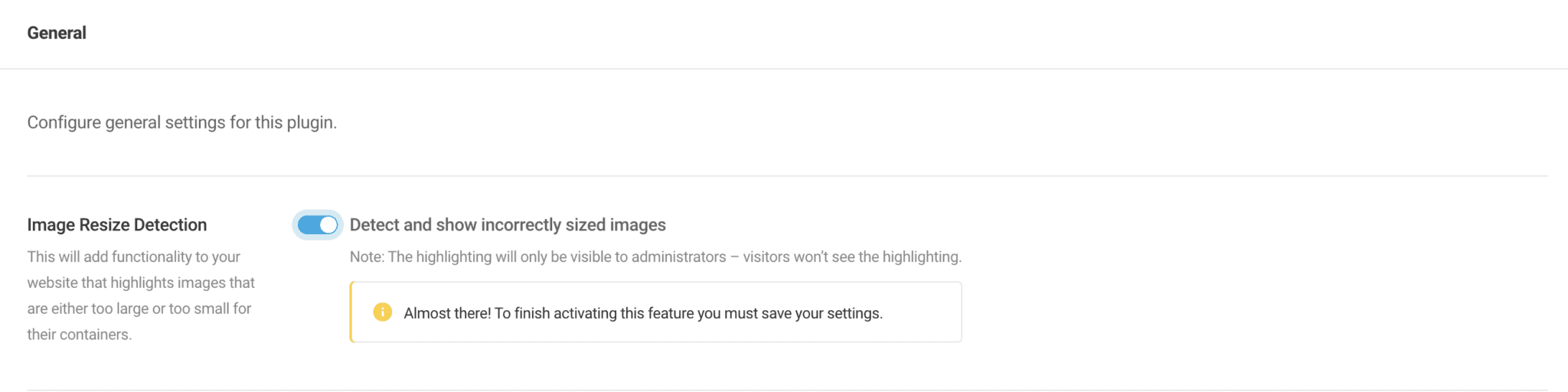
The first thing I would do is to install the Smush plugin (if you haven't already). Then go to Settings> and switch on to detect incorrectly sized images. What this will then do is when you view your website (only for logged-in admins), it will add a yellow box around the image that is incorrectly sized and then on the right-hand side, it will tell you the current size of the image and what it should be.
You can then go into media from the WordPress dashboard and click edit under the image that you want to resize. You can then size website images accordingly or crop as needed. Then replace the image on the page itself.
Smush is also for optimising images so that they load faster on your website and take up less file space (which decreases site load time)
Size images in WordPress - Summary
If you want more help with image sizes and other niggly bits on your website, then come and join us over in The Tech Tavern, our tech membership where we have weekly support, accountability and Q&A calls. Don't sit there stressing, get it sorted in under an hour!